Ultrasonic Distance perception
Copyright © Quectel Wireless Solutions Co., Ltd. 2026. All rights reserved.
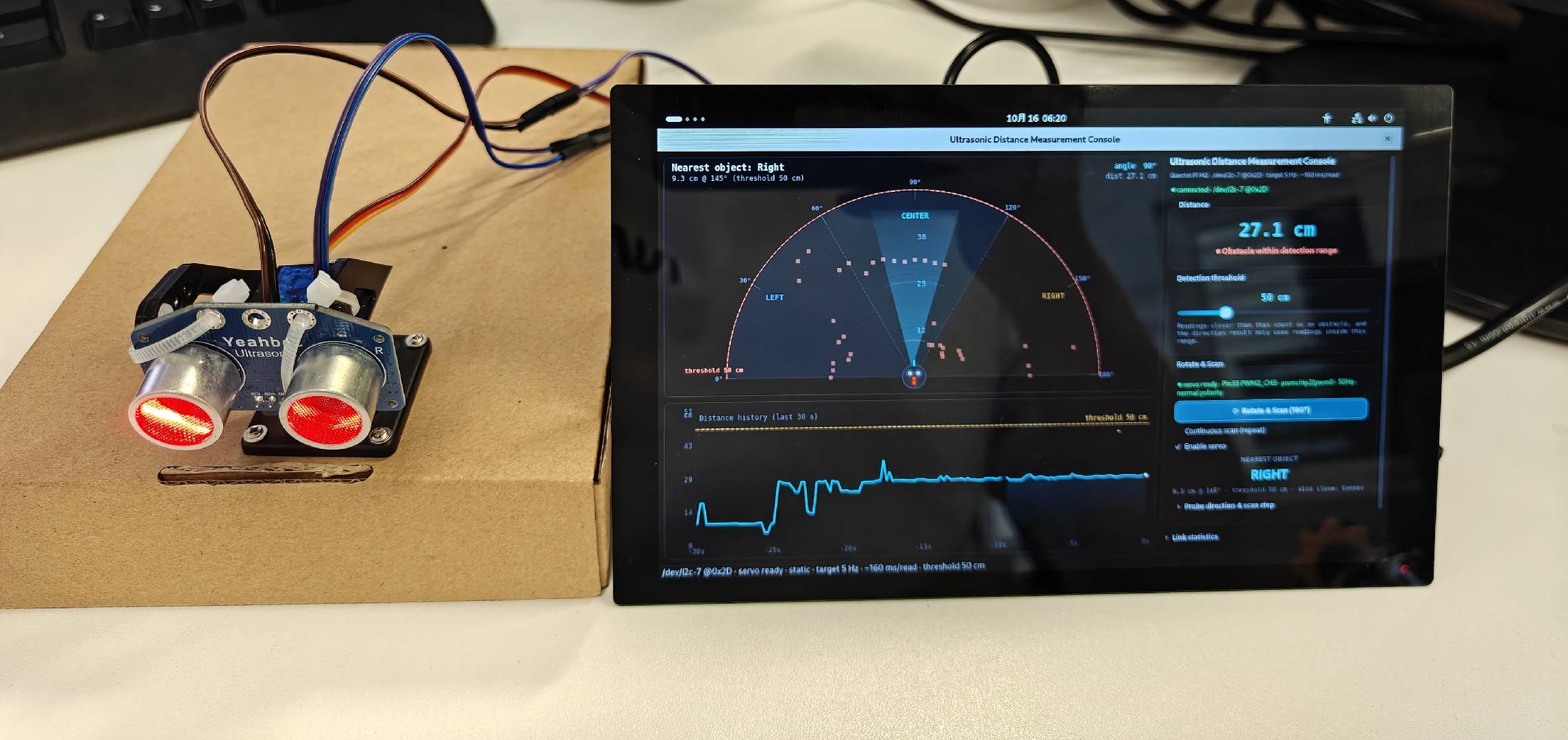
This project is an ultrasonic distance sensing example implemented based on the Quectel Pi M2 intelligent main control board.
The system performs real-time ranging via an RGB ultrasonic module, and the on-board PWM drives the servo to rotate the probe for scanning within the range of 0~180°; the full-circle readings are divided by orientation into left / middle / right three sectors, based on which the system makes a judgment of “which side the nearest object is on”, and presents the data in real time on the graphical interface via top-down polar plots, distance curves and other forms.
Collection of Development Resources
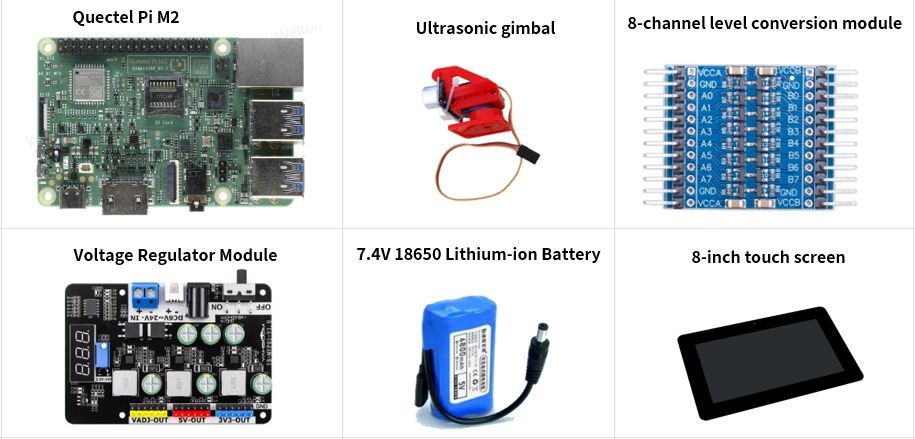
List of Development Accessories
Note:tips
Development accessories are for reference only, and may vary in different Development Environments
Parts Name |
Quantity |
Specifications |
|---|---|---|
Quectel Pi M2 Intelligent Main Control Board |
1 piece |
- |
Buck Regulator Module |
1 piece |
Multi-channel independent outputadjustable step-down voltage regulator module |
7.4V Lithium Battery (2S) |
1 piece |
|
Iridescent RGB Ultrasonic Module |
1 piece |
|
TXS0108E Bidirectional Voltage-Level Translation Module |
1 piece |
|
SG90 Servo Gimbal |
1 piece |
|
dupont wire |
several |
Female to female, it is recommended to keep the length within 20cm to reduce interference |
display screen |
1 unit |
8-inch touchscreen HDMI monitors are also compatible |
USB keyboard and mouse (optional) |
1 set |
Graphical User Interface Operation |
Note:tips
This example uses a step-down voltage regulator module for unified power supply: the main control board and the servo are connected to different output channels of the module respectively, which not only eliminates the need for an independent power supply, but also naturally isolates the interference of the servo current on the main control board. Do not connect the servo and the main control board to the same output channel.
Parts Physical Reference
Quick Start
Development Preparation
Quectel Pi M2 intelligent main control board comes pre-installed with Debian 13 system mirror by default, so there is no need to flash the mirror again.
This example requires the use of I2C7 and onboard PWM (PWM2_CH3) two peripheral devices, among which:
I2C7 is enabled by default, and its corresponding device node is
/dev/i2c-7;The PWM channel requires root privileges to be exported once and have its permissions unlocked (the kernel sysfs
exportand the exported attributes are writable only by root by default). Simply run the scriptdeploy/setup_servo_pwm.shonce, which will automatically install the boot auto-start service and udev rules, so no further authorization is needed even after rebooting.
hardware connection
Complete all the following hardware connection operations, with the serial numbers consistent with those in the table below:
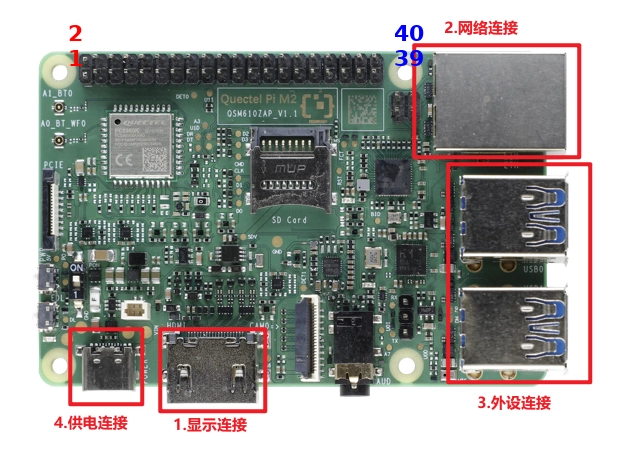
Ultrasonic module connection: The module is a 5V device, while the GPIO of the main control board operates at 3.3V logic level, so it must be connected to the main control board after level shifting (the 4 pins of the module are ordered as
VCC / SDA / SCL / GND, reverse connection may damage the module; the onboardIIC / UARTpads of the module must be set to the I2C position). The module’s VCC and the 5V side (VCCB) of the level shifting module are both powered from the 5V network of the whole device (in this example, they are tapped at pin Pin2 and Pin4 of the header respectively);Module SDA / SCL is connected to the level shifter via B1 / B2, and then connected to Pin27 / Pin28 of the main control board via A1 / A2. Pin27 / Pin28Servo Connection: Connect the servo signal wire to Pin 33 on the main control board; connect the power wire to the adjustable output terminal of the step-down voltage regulator module (adjusted to 5.0~5.5V), and the ground wire of this output channel must be connected to the main control board for common grounding.
Power supply connection: Connect the 7.4V lithium battery to the input terminal of the step-down voltage regulator module; after verifying that the two outputs are correct with a multimeter, connect the module’s 5V fixed output terminal to the main control board’s Pin2 (5V) and Pin14 (GND), and connect the adjustable output terminal to the servo; the system will be powered on at this point.
Note:tips
When powering the main control board via the 40-pin header, do not connect a USB-C power supply at the same time to avoid mutual backflow between the two 5V power rails; use either one or the other. Additionally, ensure that the output of the selected power rail is stably regulated at 5V (must not exceed 5.25V), as overvoltage will damage the main control board.
The specific pin correspondence is as follows:
Quectel Pi M2 Pins |
connection object |
Description |
|---|---|---|
Pin1(3V3) |
Level Conversion Module VCCA |
3.3V side reference voltage, supplied by the main control board |
Pin9 (GND) |
Level Conversion Module GND |
3.3V side ground reference |
Pin4(5V) |
Level Conversion Module VCCB |
5V side reference voltage (belongs to the same pin header 5V network as Pin2) |
Pin2(5V) |
Ultrasonic Module VCC |
Module power supply: 5V (the module supports 2.8~5.5V) |
Pin27(I2C7_SDA) |
Level Conversion Module A1 |
3.3V Side Data |
Pin28(I2C7_SCL) |
Level Conversion Module A2 |
3.3V side clock |
Level Conversion Module B1 / B2 |
Ultrasonic Module SDA / SCL |
5V side Data / Clock |
Pin2(5V) |
Buck converter module 5V fixed output (+) |
Power the main control board; do not reverse the connection and do not exceed 5.25V |
Pin14 (GND, any GND pin of the header will work) |
Buck Converter Module GND Terminal |
Main control board ground, which also serves as the common ground for the entire system |
Pin33(PWM) |
Servo Signal Wire (Orange/Yellow) |
PWM2_CH3, corresponding to |
Buck Converter Module 5V Fixed Output (+) |
Ultrasonic Module VCC, Level Conversion Module VCCB |
Power can also be drawn separately from Pin 2 / Pin 4 of the header, as they belong to the same 5V network |
Buck converter module Adjustable output (+)(5.0~5.5V) |
servo power cable (red) |
Use a separate circuit; do not share the same output circuit with the main control board |
Buck Converter Module GND Terminal |
servo ground wire, ultrasonic module GND, level conversion module GND, main control board GND |
All ground wires are connected to the GND terminal of the step-down module, belonging to the same ground network. |
Note:tips
The instantaneous current of a servo during stall or startup can reach 500~700 mA. If the servo and the main control board share the same output channel, this inrush current will temporarily pull down the 5V rail, which may cause both the ultrasonic module and the level conversion module to go offline simultaneously (the symptom is continuous ranging failure after rotating to certain angles). This example uses the two independent outputs of the buck module to supply power separately, which inherently avoids this interference.
Project Implementation
Get Code
Open the terminal on the intelligent main control board, and use git to clone the project code (please replace the repository address with the actual one before release).
git clone https://github.com/Quectel-Pi/demo-ultrasonic-sensing.git
After execution is complete, a demo-ultrasonic-sensing folder should be generated in the current directory.
Install Dependencies
Navigate to the project directory, create a virtual environment, and install the only dependency: PySide6.
cd demo-ultrasonic-sensing
python3 -m venv .venv
.venv/bin/python -m pip install -r requirements.txt
Note:tips
The python3 preinstalled on the board usually does not come with the pip module, and sudo requires a password, so do not try
sudo apt install python3-pip; the environment created withpython3 -m venvcomes with pip by default.
Verification Environment
Output 6.9.1 indicates that the dependency has been installed successfully.
.venv/bin/python -c "import PySide6; print(PySide6.__version__)"
Run the program
Run the startup script in the project root directory run_scan.py (it will automatically select the interpreter with PySide6, regardless of the directory from which it is invoked); if the program starts normally, a graphical interface window will open.
cd demo-ultrasonic-sensing
python3 run_scan.py
Interface Description
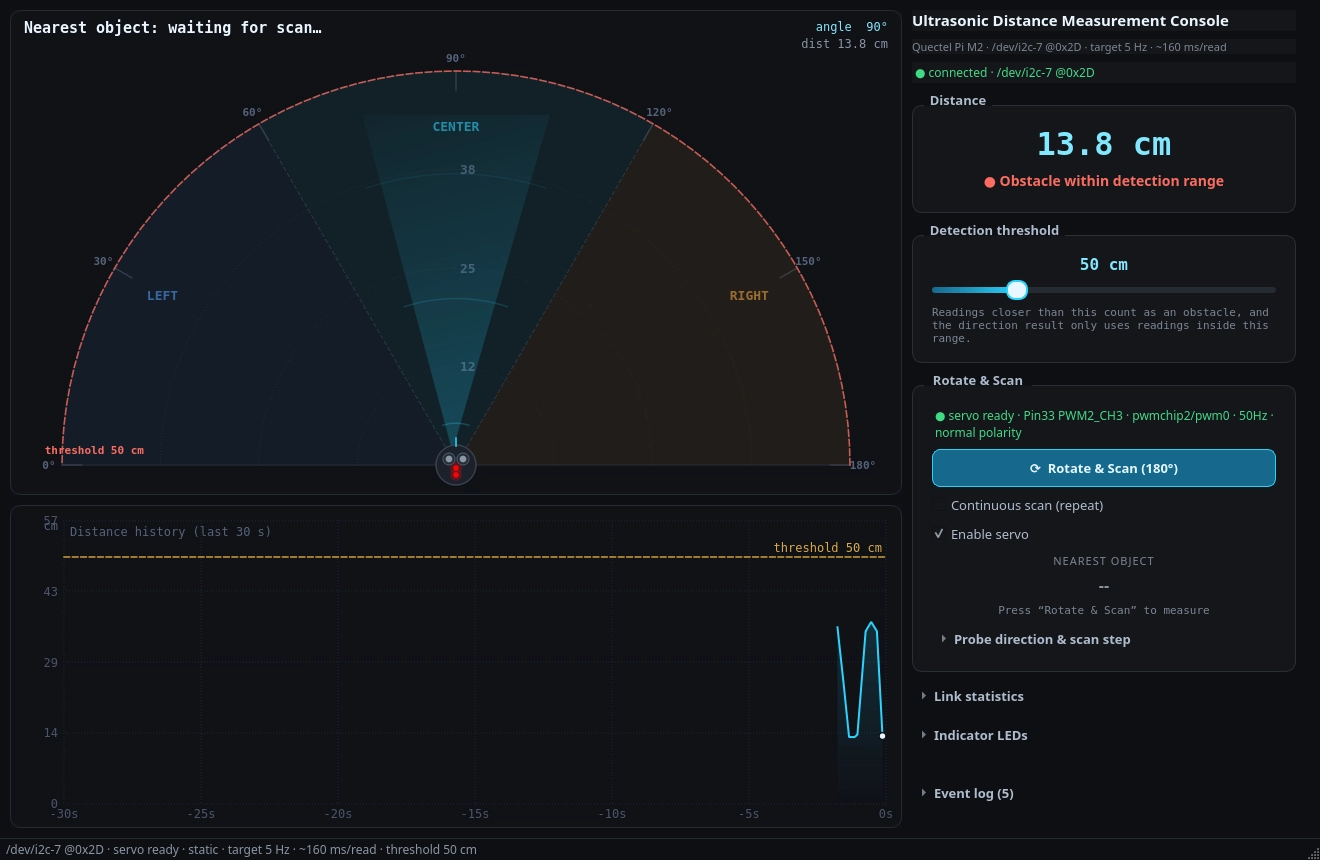
The left column consists of two views (scanning view + distance history), and the right column is the Console.
On the right Console , only three group boxes are constantly displayed—— Distance (real-time distance), Detection threshold (detection threshold), Rotate & Scan (scan and conclusion); above them are the panel title, I2C subtitle and link status line. The remaining four partitions are collapsed by default and can be expanded by clicking the title bar (among which Probe direction & scan step is embedded in Rotate & Scan).
region |
Display Status |
Content |
|---|---|---|
Top-left Scan View |
Autosomal dominant |
Top-down polar plot. The center of the circle is the rotatable probe (R/T transducer + two RGB LEDs), the upper semicircle from 0° to 180° corresponds to the servo travel, and the sectors are labeled |
Bottom Left, Distance History |
Autosomal dominant |
|
Right |
Autosomal dominant |
Large-font readings and a status line indicating whether there are any obstacles within the detection range: |
Right side |
autosomal dominant |
Threshold slider. This value not only determines the status of the line above, but also serves as the criterion for the orientation judgment of “whether the reading falls within the range”. |
Right side |
autosomal dominant |
Servo status (including polarity), |
Right side |
Collapse (embedded in |
Probe orientation relative to the slider (0°: left, 90°: front, 180°: right) and scanning step |
Right side |
Collapse |
Refresh rate, single time consumption, cumulative missing points, raw reading, median window |
Right side |
Collapse |
Obstacle indication switch, target probe (dual probe / R receive / T transmit), 8 preset colors, custom color |
Right side |
Collapse |
Activity Log; when collapsed, the title displays the number of unread items (e. g., |
Bottom Status Bar |
Autosomal dominant |
I2C Node · Servo Status · scanning/static · Target Refresh Rate · Threshold |
Scanning Method and Orientation Determination
There are two triggering modes for scanning, which share the same set of scanning and judgment logic:
Method |
Trigger Point |
Behavior |
|---|---|---|
Single Scan (Default) |
Click the |
Complete a full scan cycle → Output the result → The servo returns to the 90° home position. During scanning, the button displays |
Continuous Scanning |
Click the |
Loop one after another, refresh the conclusion once per loop; return to the docking position after unchecking |
The interface only uses one angular coordinate system (observation angle): 0° = left, 90° = directly ahead, 180° = right. The servo angle and the observation angle are in a mirror relationship under the physical assembly of this example (factory parameter SERVO_INVERT = True):
viewing angle of interface |
0°(Left) |
90°(directly ahead) |
180°(Right) |
|---|---|---|---|
Corresponding servo angle |
180° |
90° |
0° |
This mirror relationship only clarifies whether “0° counts as left or right”, and has nothing to do with pulse width or stroke calibration; if your gimbal is assembled in the opposite direction, just flip
src/config.pyinSERVO_INVERT, and the 90° parking angle is directly ahead in all cases.
Judgment Rule (Conclusion = the sector where the nearest object is located):
Only valid readings falling within the detection range (≤ threshold) are counted, and sampling points with no echo (reading = 0) are directly discarded;
Classify the full-circle readings into three sectors according to the observation angle:
Left0~60°,Center60~120°,Right120~180°;Take from each sector the nearest point respectively;
The one with the minimum distance among the three sectors is the conclusion;
Sectors that differ from the conclusion by less than
DIRECTION_MARGIN_CM(3 cm by default) will only be displayed as thealso close: …prompt in the detail line, and will not alter the conclusion;When there are no readings within range for all three sectors, the system will output
NONE IN RANGE, while the detail line will still display the most recent full-circle reading.
Implementation Principle
ranging
The module uses the I2C interface, and the procedure is: write to register 0x10 the value of 0x01 to trigger a single measurement, wait for approximately 100 ms, then read 2 bytes of big-endian data from the module.
The distance conversion relationship is as follows: Distance (cm) = Original value × 0.017, with an effective measurement range of 2 to 400 cm. The driver layer will discard readings that exceed the range (for example, 0x7FFF caused by I2C bit flipping), so abnormal values will not be introduced into the interface and judgment logic.
servo
The servo is directly driven by the kernel sysfs PWM (software PWM is not used to avoid angle jitter caused by User Mode jitter), with a frequency of 50 Hz, and a pulse width of 500~2500 µs corresponding to 0~180°.
The driver searches for channels based on the PWM controller device name (2ade3000.pwm) instead of the pwmchipN numbering, as the numbering changes with the detection order of the kernel and device tree. The on-board channel used in this example is Pin33 = PWM2_CH3 = pwmchip2/pwm0.
Two core constraints encountered and addressed in board-level testing:
The channel must first be written with a non-zero
period, after whichenable/duty_cyclecan be written; otherwise,EINVALis returned.The default polarity of this channel after export is
inversed, while the servo requiresnormal, and the driver will explicitly correct it and display the polarity on the interface.
smooth motion
PWM servos have no on-board easing function, and the pulse width changes immediately once written. If the target angle is written in one go, the movement from the resting position of 90° to the scanning start point of 0° will be a positional step: the internal controller of the servo will run at full speed, producing loud gear impact noise, being prone to overshoot, and generating current spikes.
Therefore, the drive operates according to a trapezoidal velocity profile to approach the target angle in discrete steps: it first accelerates at the specified acceleration limit, then runs at constant speed, and finally decelerates to 0 such that it can come to a complete stop within the remaining distance. A single large-angle movement is split into dozens of small steps for issuance, and the measured time consumption is as follows:
displacement |
5°(single step) |
30° |
90°(berth → scanning start point) |
180°(full stroke) |
|---|---|---|---|---|
Time elapsed |
0.065 s |
0.175 s |
0.425 s |
0.800 s |
Since the speed at the time of positioning is close to zero, the mechanical residual vibration is significantly reduced, and the stable waiting time is shortened, which just offsets the overhead of the ramp itself.
Performance Measurement Data
Project |
Measurement results |
|---|---|
Time consumption of single ranging |
Approx. 100 ms for measurement + approx. 60 ms for communication overhead |
static refresh rate |
Approximately 5 Hz (10 out of 10 clean reads at a 200 ms cycle) |
Default 5° step to sweep one full circle |
37 sampling angles, 11.3 s |
Repeatability of steering gear positioning |
13 points at different angles over two consecutive laps coincide with a precision of 0.1 cm |
Intrinsic Packet Loss Rate of Module |
5~7%(Control experiment: the final effective rates for immediate re-reading 0/1/2 times are 93.3% / 95.0% / 93.3% respectively) |
Interference of the steering gear on ranging |
None (the efficiency remains consistent across the three states: hold, release, and sweep) |
Point loss is an inherent characteristic of the module, therefore the interface layer adopts the presentation method of “short-term hold + dashed curve bridging”: when consecutive point loss does not exceed
HOLD_FAILS(default: 3) times, the previous reading is displayed (the number is dimmed); for gaps of ≤2 points in the historical curve, dashed line segments are used for bridging to distinguish from real data; the link statistics area provides cumulative point loss counts to facilitate judging whether the issue is truly improved.
Application Demo
Graphical User Interface
Static interface state (real hardware, readings within the detection range, status bar displays Obstacle within detection range):
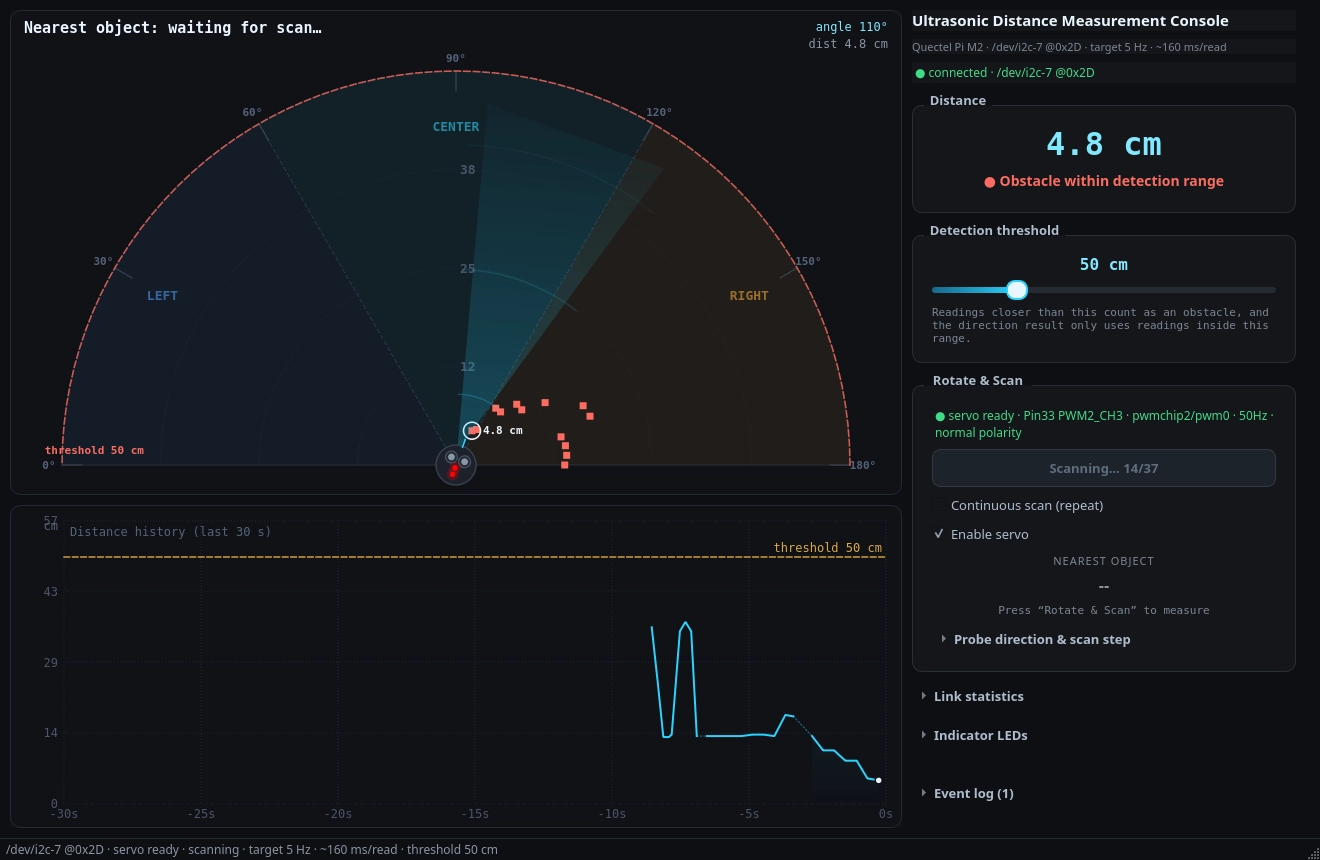
Click ⟳ Rotate & Scan (180°), and the scan will be in progress: the button will change to Scanning… n/N, and the sampling points on the polar plot will accumulate point by point as the scan proceeds:
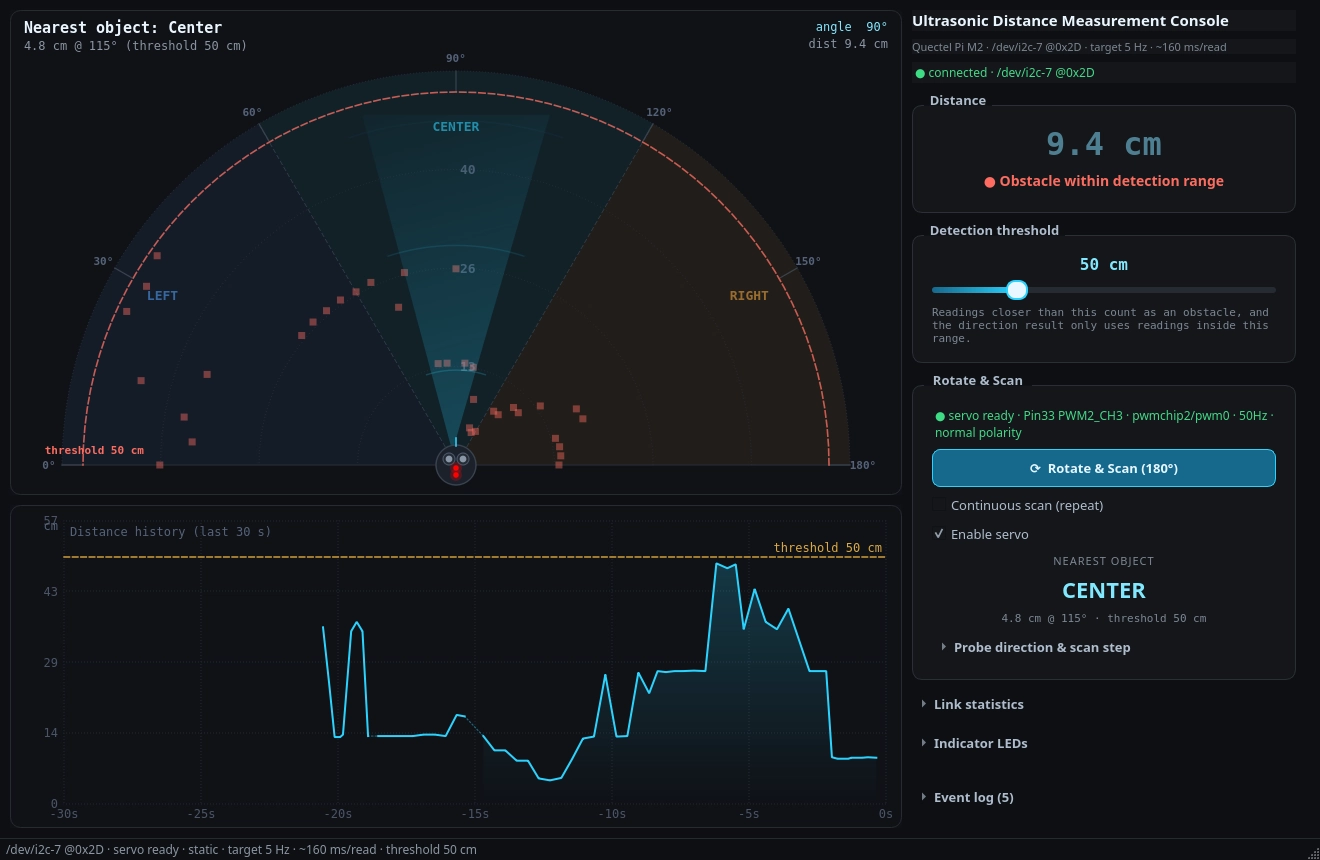
Orientation determination result after one full scan (presented simultaneously in the conclusion area and at the top-left of the scan image Nearest object):
Demo Video
Frequently Asked Questions and Solutions
The interface displays SIMULATION (simulation mode)
Phenomenon:
Status bar: SIMULATION (/dev/i2c-7 not opened)
Link row: ○ SIMULATION · I2C bus not opened
(If the bus fails to open in real device mode, the link line will include the specific reason, for example,
SIMULATION · cannot open I2C bus /dev/i2c-7: [Errno 2] No such file or directory.)
Solution:
Make sure that the ultrasonic module is properly connected and powered normally, the level conversion module has 3.3V on side A and 5V on side B, and the direction is not connected reversely.
Check whether the device node exists:
ls -la /dev/i2c*
Verify that the current user is in the
i2cgroup (check via thegroupscommand); if not, re-login after adding the user to the group.Check the interface
Event logor the specific error cause in the status bar.
The servo motor does not rotate, and the log indicates no write permission for sysfs
Phenomenon:
No write access to /sys/class/pwm (kernel default: root only).
Run this ONCE on the board:
    sudo bash deploy/setup_servo_pwm.sh
The servo status line on the interface displays the simulation state (◐ SIMULATION · No write access to …), and the servo will not actually rotate.
Solution:
The PWM channel requires a one-time authorization. Please run the following command in the root directory of the project:
sudo bash deploy/setup_servo_pwm.sh
The script will export channels, release the dialout permission, and install the boot auto-start service and udev rules, so no repeated authorization is required afterwards. Run sudo bash deploy/setup_servo_pwm.sh --status to only check the current authorization status.
Auto-scan checkbox unclickable / automatically bounces back
Phenomenon:
Continuous scan (repeat) Once ticked, it will immediately revert to the unticked state, with a description provided in the log:
Servo PWM is not actually driven (…), so the probe never turns and any
direction result would be meaningless — automatic scanning is disabled
Solution:
This is by design, not a malfunction. When the combination of “real ultrasonic wave + simulated steering gear” occurs (i. e., the ranging relies on real hardware, but the steering gear will not actually rotate due to unauthorized PWM), the program will refuse to scan: at this time, the probe always faces the same direction, and all orientation results are false. Just complete the PWM authorization according to the previous instruction to resume normal operation.
Excessive noise when the steering gear rotates, and severe jerk at start-up
Phenomenon:
When the steering gear rotates from the docking position to the scanning start point, it produces loud noise with obvious gear collision sound.
Solution:
Confirm that you are running on the latest version (motion smoothing is enabled by default). If you have manually disabled it before, please verify that
src/config.pycontains a non-zero value forSERVO_SLEW_DPS.Want softer and adjustable lower cruise speed and acceleration:
SERVO_SLEW_DPS = 150.0          # Cruise angular velocity upper limit (degrees/second)
SERVO_SLEW_ACCEL_DPS2 = 3000.0  # Upper limit of angular acceleration (degrees/second ²)
Insufficient current supply to the servo may also cause jitter and abnormal noise. Please check whether the servo exclusively occupies one output channel of the step-down voltage regulator module, whether the voltage of this channel is within 5.0~5.5V, and whether it shares a common ground with the main control board; if necessary, connect a 470~1000 µF capacitor in parallel near the power supply terminal of the servo.
The distance reading occasionally displays –.-
Phenomenon:
During operation, it occurs every few seconds --.-.
Solution:
This is the inherent 5~7% point loss of the module (see “Actual Performance Test Data”), which is a normal phenomenon rather than a wiring issue. The presentation can be adjusted via parameters:
HOLD_FAILS = 3           # hold the last reading while consecutive missed points <= N (0 = disable)
HISTORY_GAP_BRIDGE = 2   # max gap (points) bridged by a dashed line in the history chart (0 = off)
Ranging fails continuously when rotated to certain angles
Phenomenon:
When scanning to a certain angle interval, the readings fail continuously, and return to normal after leaving this angle.
Solution:
This is mostly caused by the instantaneous current of the servo pulling down the 5V power supply rail, which leads to abnormal operation of the ultrasonic module or the level conversion module. Please connect the servo and the main control board to different output channels of the step-down voltage regulator module, and ensure that the two are commonly grounded; at the same time, confirm that the power supply for the ultrasonic module and the level conversion module is not tapped from the servo’s power line. If the two channels share the same output, please rewire them to separate channels.
The judgment result is reversed left and right
Phenomenon:
When the interface displays LEFT, the physical probe actually faces to the right.
Solution:
Simply toggle the mirror switch in src/config.py (only modify the definition of “whether 0° counts as left or right” — pulse width and stroke calibration remain unaffected):
SERVO_INVERT = False # default True
You can use the calibration script to check each angle one by one: the script will make the probe pause for 3 seconds at 0°/90°/180° respectively, and print the orientation recognized by the program; you only need to check whether the actual object matches the prompt.
Runtime Prompt: No module named ‘PySide6’
Phenomenon:
ERROR: PySide6 is not installed.
Solution:
Dependencies failed to install successfully. Please go back to the project root directory and reinstall them:
cd demo-ultrasonic-sensing
python3 -m venv .venv
.venv/bin/python -m pip install -r requirements.txt \
    -i https://mirrors.aliyun.com/pypi/simple/ \
    --trusted-host mirrors.aliyun.com
Running python src/main.py directly throws an import error
Phenomenon:
ImportError: attempted relative import with no known parent package
Solution:
The package import of this project is based on the project root directory. Please switch to module mode to start it:
python -m src.main
or directly run the startup script ./run_scan.py.
Technical Support and Contributions
If you encounter any issues during use, please feel free to submit a technical inquiry on the Quectel Official Forum, and our technical support team will respond to you promptly.
Project Open Source Repository: https://github.com/Quectel-Pi/demo-ultrasonic-sensing
Feel free to submit an Issue to report problems or a Pull Request to contribute code improvements!